Creating an EC2 Key Pair
Starting my AWS Cloud journey, one challenge at a time, and the public-key authentication concept hiding behind a few clicks.
I’m currently working through the 100 Days of Cloud (AWS) path, alongside my 100 Days of DevOps journey.
Rather than simply completing each challenge and moving on, I’m documenting what I learn along the way — including the concepts behind each task, how to complete it, and why it matters in a real cloud environment.
For Day 1, the task was straightforward:
Create an AWS key pair named
xfusion-kp.
It only takes a few steps to complete.
But behind those few clicks is an important cloud security concept: public-key authentication.
So let’s look at what an AWS key pair actually is and why we’ll need it.
What Is an AWS Key Pair?
An AWS key pair consists of two related cryptographic keys:
- Public key
- Private key
The public key is associated with an EC2 instance, while the private key is kept by the person who needs to authenticate to that instance.
The basic concept is:
Public Key  -> Associated with the EC2 instance
Private Key -> Kept securely by you
When you eventually connect to a Linux EC2 instance using SSH, the private key can be used to prove that you are authorized to access the instance.
This is different from logging into a server with a traditional username and password.
Why Does EC2 Need a Key Pair?
When you create a Linux EC2 instance, you need a way to securely authenticate to it.
One common method is SSH using public-key cryptography.
Instead of the server simply asking:
Username:
Password:
SSH can use a cryptographic key pair to authenticate you.
The server has access to the public key, while you keep the private key.
If your private key corresponds to the public key configured for the instance, SSH can authenticate you.
This is one of the fundamental concepts behind secure access to Linux servers.
Creating xfusion-kp
For this challenge, I used the AWS Management Console.
After signing into AWS, I navigated to the EC2 service. From the EC2 console:
EC2 -> Network & Security -> Key PairsFrom there, I selected Create key pair.
The challenge specified that the key pair should be named xfusion-kp, so I entered that as the key pair name.
The important point here is that the name wasn’t something I needed to come up with. It was part of the challenge requirements.
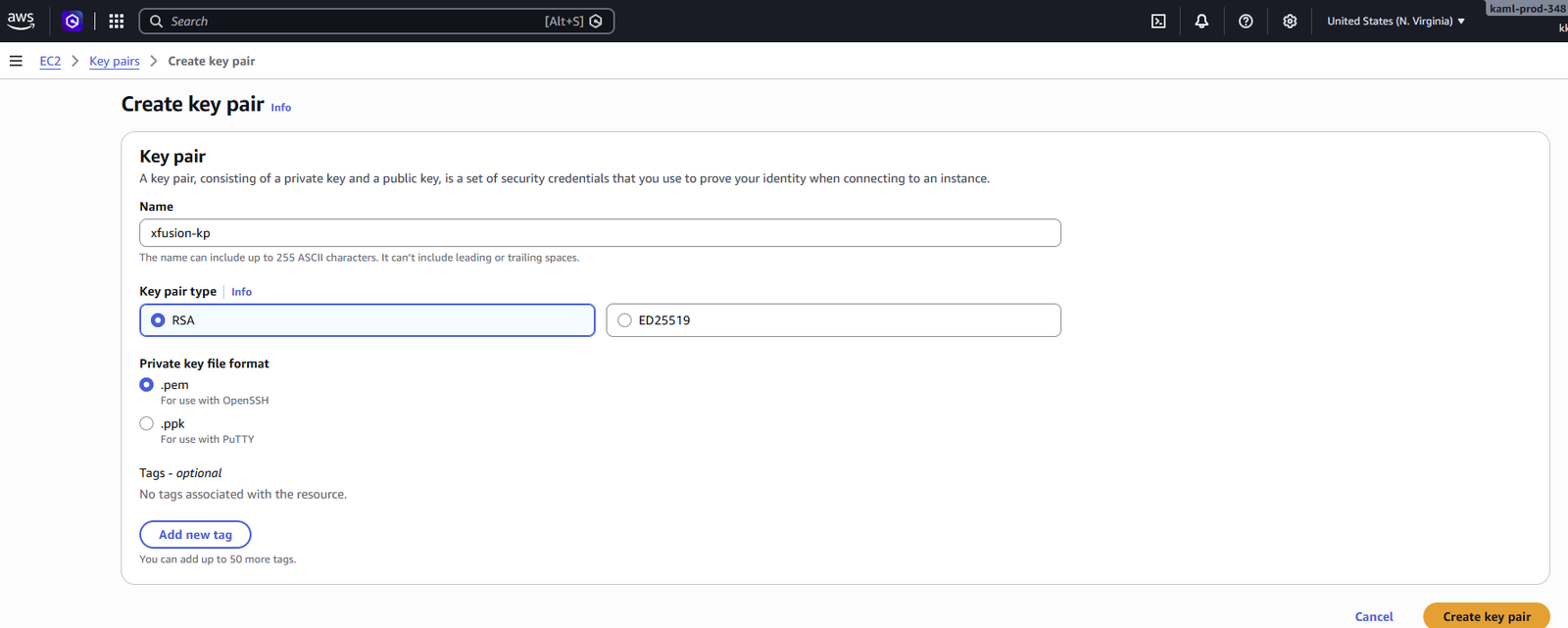
xfusion-kp, (2) key pair type: RSA, (3) private key format: .pem. Click to open the full screenshot.Choosing the Key Pair Type
AWS provides different key-pair types depending on the cryptographic algorithm being used: RSA and ED25519.
For the challenge, I selected the required option, RSA, with the .pem private key format (for use with OpenSSH), and continued with the key-pair creation.
The important lesson isn’t simply which box to click.
It’s understanding that the key type determines the cryptographic mechanism used to generate the keys.
Downloading the Private Key
Once the key pair was created, AWS provided the private key for download.
The private key is the sensitive part of the key pair.
For example, it may be downloaded as a file such as:
xfusion-kp.pemThis file should be protected carefully.
- Do not share it.
- Do not upload it to GitHub.
- Do not commit it to a source-code repository.
- Do not send it through insecure channels.
The private key is something you should treat as a sensitive credential.
Public Key vs. Private Key
This is worth slowing down for because it’s easy to memorize the terms without understanding what they actually mean.
Public Key
The public key is designed to be distributed.
In the EC2 workflow, AWS can associate the public key with an instance when you launch it using that key pair.
Private Key
The private key remains under your control.
It is used by your SSH client when authenticating to the instance.
Think of it conceptually like this:
The private key is what you need to protect.
What Happens to the Private Key?
One important thing I learned from this task is that AWS doesn’t simply keep a copy of your private key available for you to download whenever you want.
When the key pair is created through the AWS Management Console, the private key is provided to you for download.
That means you are responsible for protecting it.
If you lose the private key, accessing an EC2 instance that depends on that key can become much more complicated.
This is why key management is an important part of cloud security.
Don’t Put Your .pem File in Git
This is a particularly important lesson for anyone learning DevOps or Cloud.
Suppose you have xfusion-kp.pem. You should not put that file into a Git repository.
For example, avoid:
git add xfusion-kp.pem
git commit -m "Added AWS key"
git push
If the repository is public, you could potentially expose credentials that allow unauthorized access to infrastructure.
Even if you delete the file in a later commit, it may still exist in the repository’s history.
A simple precaution is to add private key files to .gitignore:
*.pem
*.ppk
However, .gitignore should be considered a safeguard against accidental commits — not a replacement for proper secret management.
How Will We Use This Key Later?
Creating the key pair is only the first step.
The real purpose becomes apparent when we work with EC2 instances.
When launching a Linux EC2 instance, we can select an existing key pair, such as xfusion-kp.
That allows the instance to be configured for key-based authentication.
Later, when connecting through SSH, we may use the corresponding private key:
ssh -i xfusion-kp.pem username@server-ipThe exact username depends on the operating system image being used. For example, Amazon Linux commonly uses ec2-user, while Ubuntu commonly uses ubuntu.
So the key pair created on Day 1 becomes part of the authentication process we’ll use with EC2.
The Difference Between Creating a Key and Using a Key
One thing I don’t want to overlook is that creating the key pair does not mean I’ve connected to an EC2 instance.
Today’s task was simply to create xfusion-kp.
The key becomes useful when an EC2 instance is launched or configured to use it.
That’s an important distinction because cloud infrastructure is often built from multiple small components.
Today’s key pair may become part of tomorrow’s server access workflow.
What I Learned From Day 1
The actual task was small: create the xfusion-kp key pair. But there were several concepts behind it.
- AWS uses public-key cryptography for EC2 access. Instead of relying solely on passwords, SSH can use cryptographic keys for authentication.
- Public and private keys have different roles. The public key can be shared with the service that needs to verify authentication. The private key must remain protected.
- Key management is a security responsibility. Creating a key pair is easy. Keeping the private key secure is the more important responsibility.
- Cloud resources build on each other. The key pair created today will become useful when working with EC2 instances and SSH.
This is one thing I’m enjoying about the challenge so far: individual tasks start making more sense when you understand where they fit into the larger infrastructure picture.
Day 1 Checklist
The challenge required me to:
- Access the AWS Management Console
- Navigate to EC2
- Open Key Pairs
- Create a key pair
- Name the key pair
xfusion-kp - Download the private key
- Understand the purpose of the key pair
- Understand why the private key must be protected
Final Thoughts
Day 1 of the 100 Days of Cloud (AWS) path was a relatively simple hands-on task, but it introduced a concept that will continue to appear throughout my cloud journey: secure authentication.
The actual task took only a few steps.
But understanding why AWS uses key pairs, what the public and private keys do, and why the private key needs to be protected is much more valuable than simply knowing where the Create key pair button is.
That’s the approach I’m taking with this challenge:
Don’t just complete the task. Understand what the task is teaching.
Day 1 complete. 99 days to go.